
Connect QuickBooks Online
Where: Settings, Integrations, QuickBooks Online card. Growth and Scale.
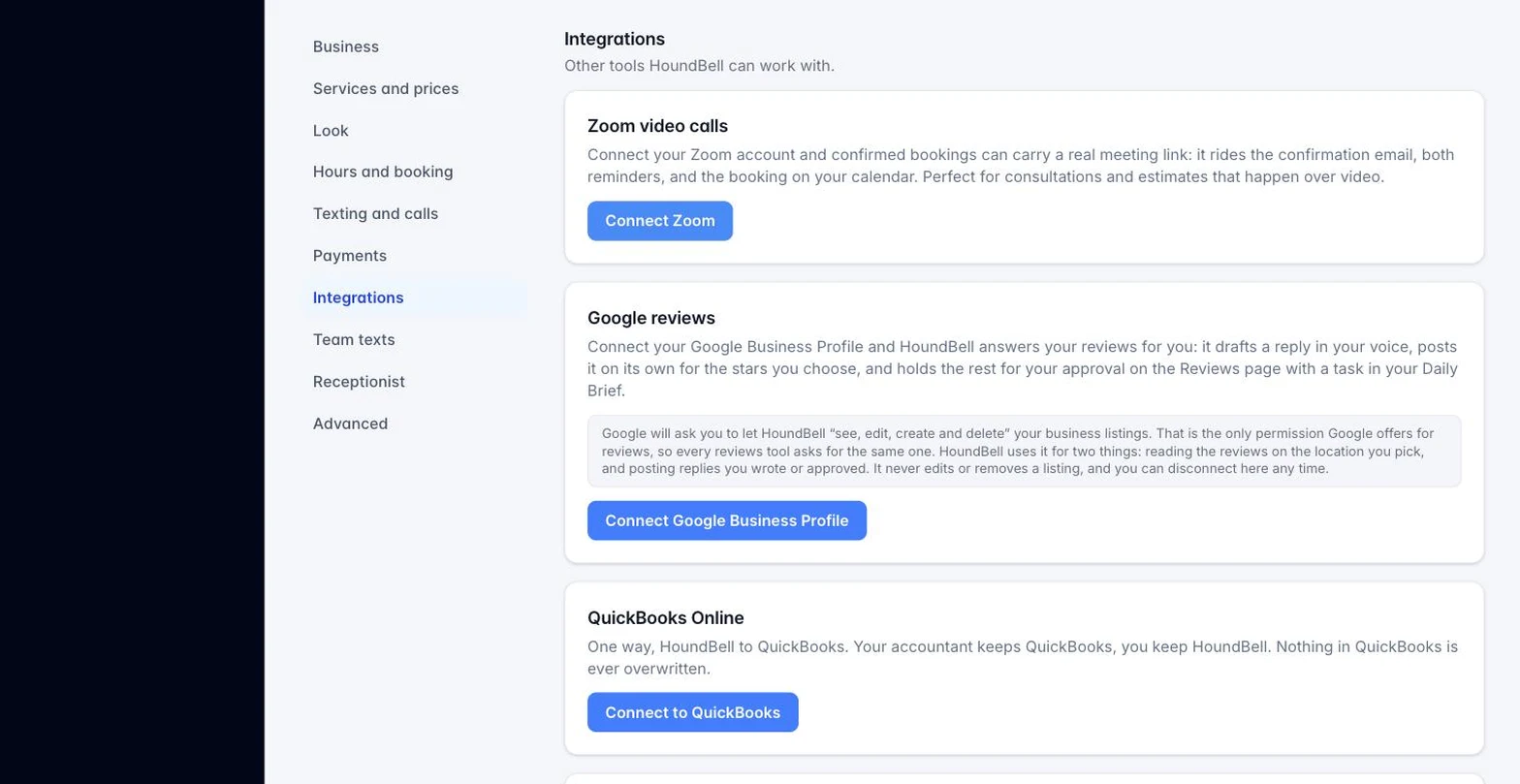
The sync is one way: HoundBell sends your customers, items, invoices, and payments into QuickBooks, and can optionally push your Books expenses too. Nothing already in QuickBooks is ever read back or changed, so your accountant’s own work there is always safe.
- Click Connect to QuickBooks and sign in to the QuickBooks company you want to send data to.
- On the mapping card, choose your income account, the bank account payments should deposit to, and, if you charge sales tax, the matching tax code.
- Turn on Also push expenses to QuickBooks if you want Books expenses included, and pick an expense account.
- Save.
New customers, quotes turned invoices, and payments sync automatically from here on. If you want to push everything already in HoundBell, click Sync now; a first sync on a business with a lot of history may take a few minutes and shows a running count as it works through batches. A sync log at the bottom of the card lists the last several runs with what was pushed, skipped, or failed.
Note: Intuit’s review of the HoundBell app is complete and the connection is live: press Connect on the QuickBooks card and sign in with your Intuit account. If the card ever shows an error, a support email line appears right under it.
Still stuck?
Email us and a person will answer. Include your workspace name, and the quote or invoice number if it is about one.
Email support@houndbell.com