
Import your clients from a spreadsheet or another CRM
Bring your existing customer list into HoundBell from Jobber, Housecall Pro, ZenMaid, HoneyBook, HubSpot, Pipedrive, HighLevel, Excel, Google Sheets, or any other CRM that can export a CSV. HoundBell recognizes each of those exports and matches the columns for you.
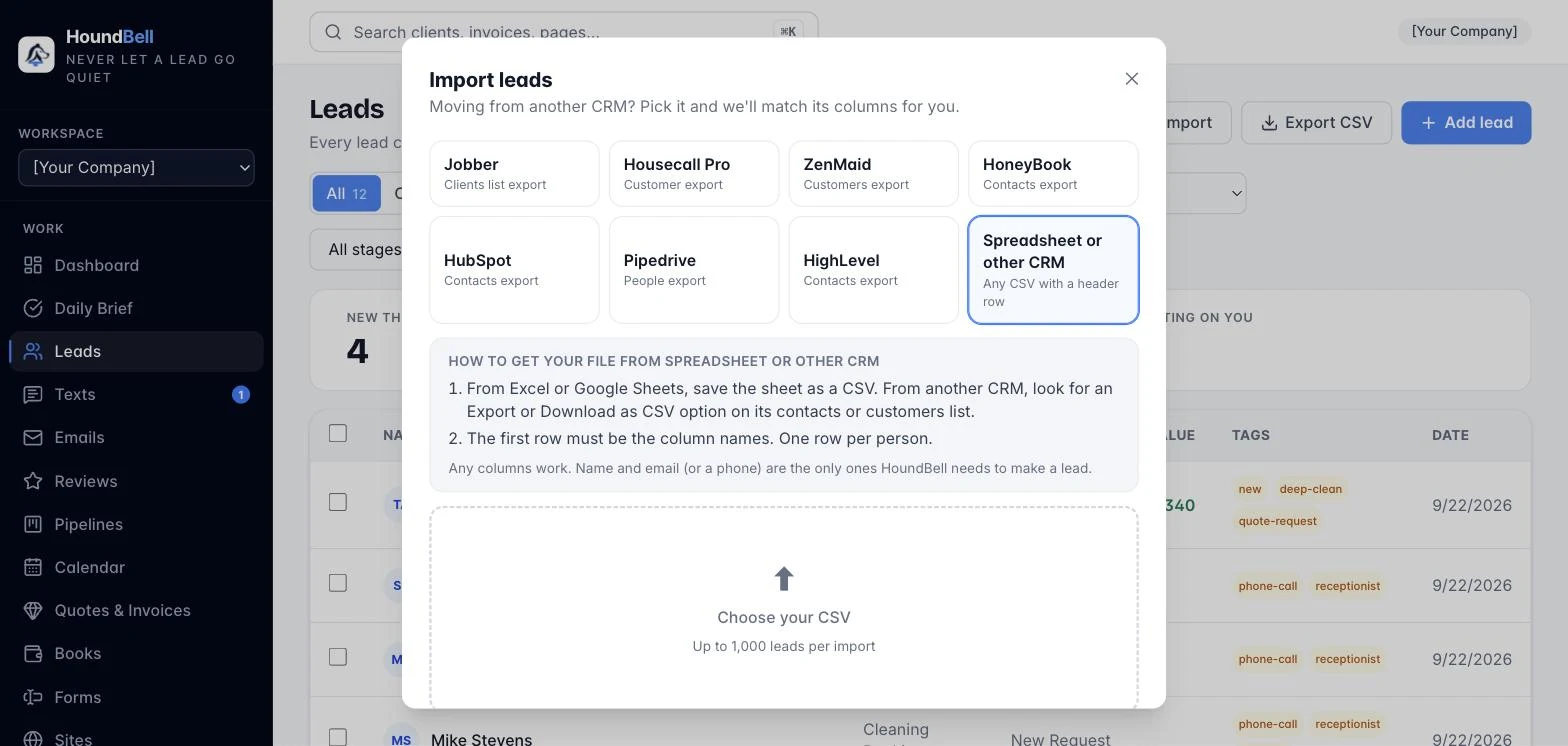
- On the Leads page, click ⬆ Import.
- Pick where you’re coming from. Choose your old CRM (or “Spreadsheet or other CRM“). The panel below tells you how to get the export from that tool and what the file should contain. In every case you want the customers or contacts list, not jobs, invoices, or appointments. Up to 1,000 leads per import, 2MB max. The import also asks what the list is: leads for the board, customers, or a mailing list; customers and mailing-list contacts stay off the pipeline board.
- Choose your export. HoundBell reads the column names and tells you which CRM it recognized (“This looks like a Jobber export“). If you picked the wrong one, no harm: the file itself decides.
- Check the columns. Every column is matched to a HoundBell field: Full name or First and Last name, Company, Email, Phone, Address (street, city, state, and zip join into one address), Service, Value, Tags, Status, and Notes. Columns HoundBell has no field for map to Extra detail (kept on lead) and stay on the lead’s card, so nothing in your file is lost. Fix any guess with the dropdowns.
- Click Next: preview. Choose which pipeline the imports land in (they enter at its first stage), set a Tag for this batch (the default names the source, for example “from-jobber“), and leave Skip duplicates (by email or phone) checked so people already in HoundBell are not imported twice. The summary shows how many are ready, how many are duplicates, and how many rows had nothing to identify them.
- Click Import.
What comes over: names, emails, phones (cleaned into a format texting can use), addresses, company names, tags, your old CRM’s status or stage (added as a tag, for example “active“ or “lead“), notes, and every other column as a detail. Dollar values are cleaned automatically (“$1,250.00“ becomes 1250).
What does not come over: texting consent. Imported clients never get a text until they opt in through your form or you confirm consent on their card. That protects your texting number.
The batch tag is your safety net: search it on the Leads page to see exactly what an import brought in, and if an import went wrong, select the whole batch and delete it (Article 4.5).
Still stuck?
Email us and a person will answer. Include your workspace name, and the quote or invoice number if it is about one.
Email support@houndbell.com