
Sending a report card
Where: the job card in the crew view after the job is marked done, or the booking in the office calendar.
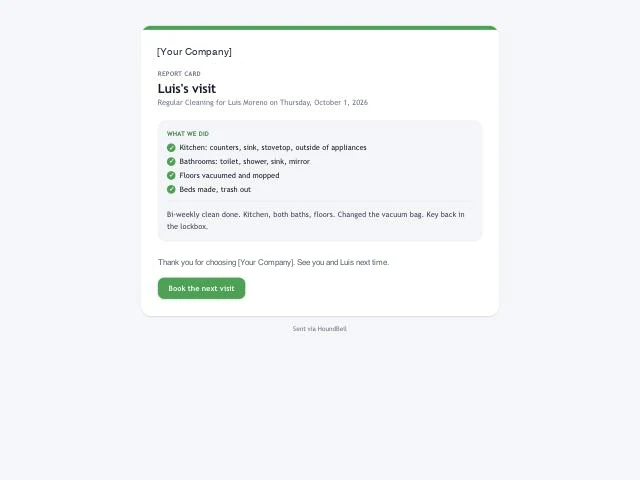
A report card is a page the client opens from a text or an email. It carries your business name and colors, the pet’s name (or the client’s), the date, up to six photos from the job, your crew’s job notes as “What we did”, one line called “Practice at home”, and a thank-you.
To send one:
- Mark the job done. The job notes are required for Done, and they become the “What we did” part, so write them the way you would say them to the client.
- Press Send report card. Add one line under Practice at home if there is homework (“Two short sit-stay rounds a day.”), or leave it blank.
- Press Send report card again. The client gets “Here is today’s report card for Max: ” by text if they said texts are OK, otherwise by email. The button turns to “Card sent”.
The office can do the same from the booking in the calendar: open the job, press Report card, add the line, send. Photos on the page are served through links that stop working after 7 days, so an old link never hands out your job photos. Report cards are for what happened at the visit; keep health matters out of them.
Still stuck?
Email us and a person will answer. Include your workspace name, and the quote or invoice number if it is about one.
Email support@houndbell.com