
The lead card
Click any lead to open its card, a panel with everything about that person:
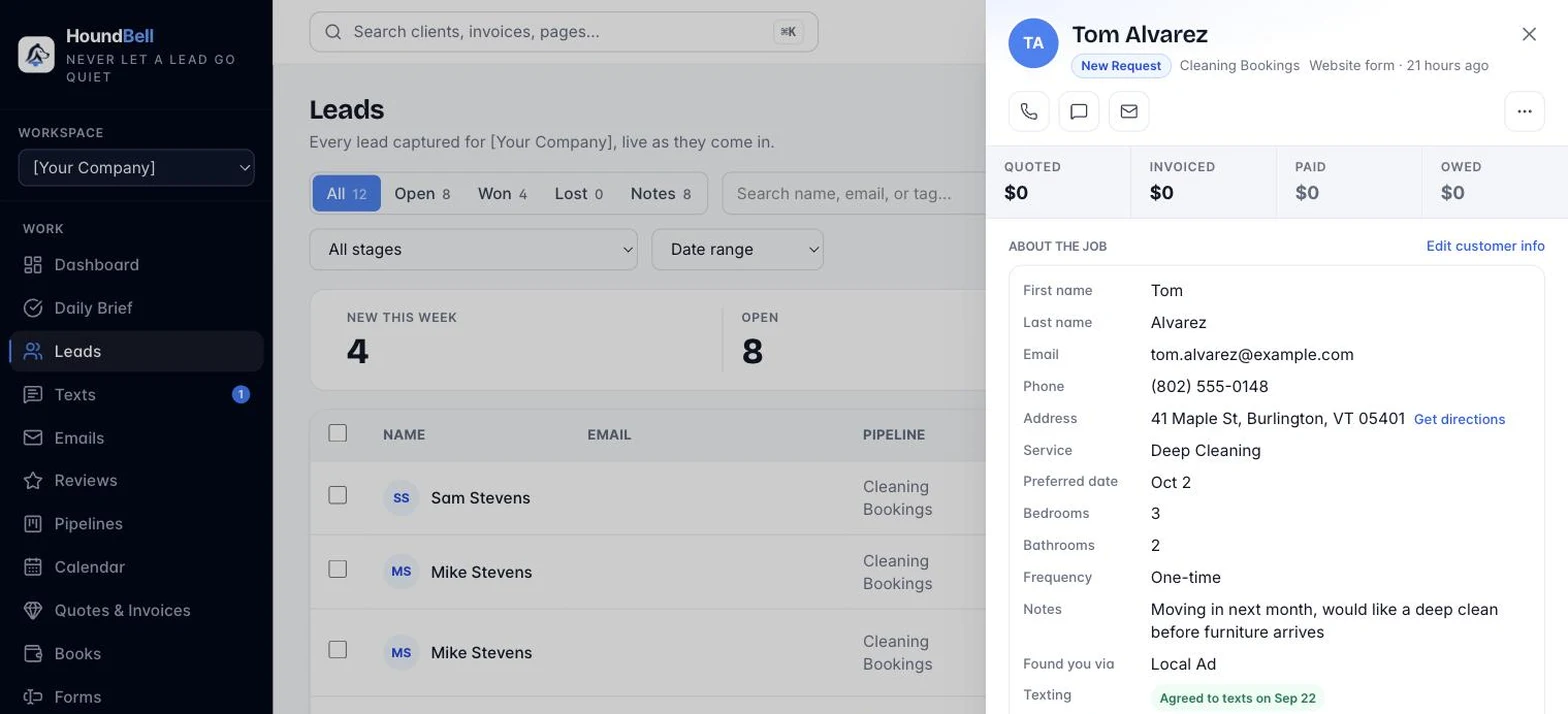
- Submission: every answer from their form, exactly as they typed it.
- Edit customer info: below the Submission block, fill in what a form or phone call didn’t capture: name, email, phone (with the same country picker as your website forms), address, and an optional birthday.
- Notes: your running history on this lead. Type a note and click Add (or press Cmd+Enter). The two newest notes show; View all reveals the rest in place. Notes are private to your team.
- Quotes: this lead’s quotes with status badges, plus + New quote. The three newest show here; the rest live in the client’s statement.
- Invoices: same idea for invoices, with + New invoice.
- Agreements: signed contracts live here too, with their services and totals. See Contracts and E-Signatures.
- Schedule: this client’s bookings, with + Add to calendar to book them without leaving the card.
- Service & value: every service in the deal, one line each with its own dollar amount, and + Add another service for when the deal grows (“the deep clean AND the windows”). The first line is what reports count the lead under; the amounts add up into the deal’s total, which feeds your revenue and pipeline numbers.
- Deal history: a 🏆 list of every deal you’ve ever won with this client, each with its service, amount, and win date, with the client’s lifetime value totaled at the top. History is permanent: starting a new deal with a returning customer never changes what past months earned.
- Tags: comma-separated labels for filtering.
- Move to pipeline: reassign the lead; it lands in the first stage of the pipeline you pick.
- Delete lead at the bottom. Deleting is permanent and takes the lead’s notes, quotes, and invoices with it, so the app asks you to type delete to confirm.
Still stuck?
Email us and a person will answer. Include your workspace name, and the quote or invoice number if it is about one.
Email support@houndbell.com