
Invite a team member
Two kinds of people can work in your business, and the Team page shows how many of each your plan includes at the top: office users, field crew, and whether crew texting is on.
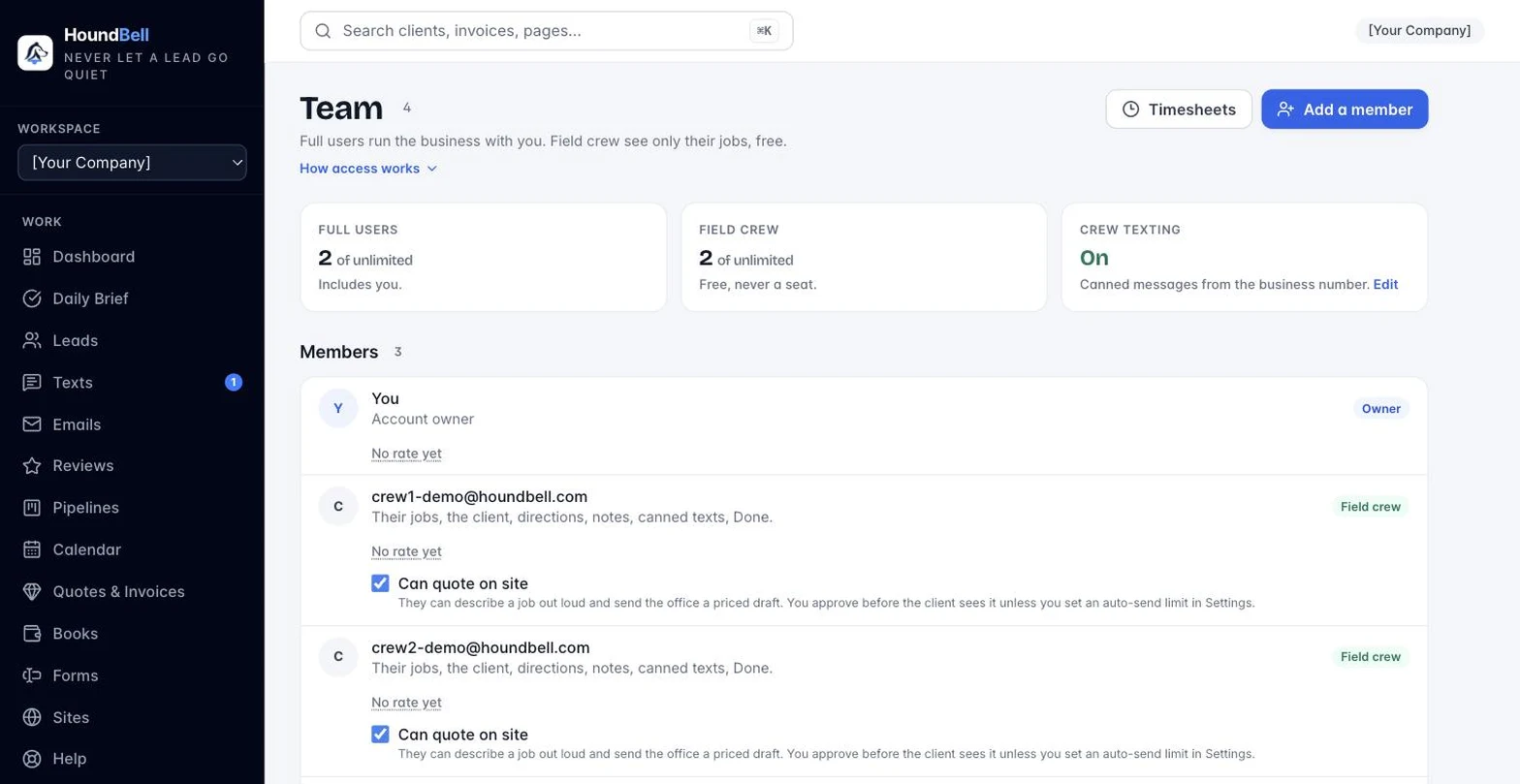
- Office users run the business with you. You choose exactly which areas they get. Starter includes 2 (counting you), Growth includes 10, and Scale includes 25 per location. On Growth and Scale you can add more for $5 a month each from Billing.
- Field crew are free logins for the people doing the work, and never count as a user. Starter includes 5 per business; Growth and Scale are unlimited. See Article 12.5 for what a crew member sees.
- Crew texting lets crew send your canned messages from the business number. It follows your texting plan: included on Growth and Scale, a $10 a month add-on on Starter.
If you try to add someone past your plan’s count, the page tells you and links to Billing.
Give an employee or a client their own sign-in, and delegate exactly the parts of the business you want them running:
- Open Team, choose Office user, and enter their first name, last name, and email.
- Check the areas they should have: Dashboard, Daily Brief, Leads, Texts, Calendar, Quotes & Invoices, Pipelines, Forms, Sites. Checking Leads checks Texts too, since most people who work leads also answer clients; uncheck Texts to let someone work leads without texting as the business. Every checked area gives them full working rights there. They can add and edit leads, confirm bookings, send quotes and invoices, and so on, depending on what you check. Unchecked areas don’t appear for them at all. The access table beside the form spells out exactly what each checkbox grants.
- Leave Email them an invitation with their sign-in details checked and click Add member. They receive an email with their username and a temporary password (shown to you as well, in case you would rather deliver it personally). They should change it on the Account page after first sign-in.
Two things always stay with you, the account owner:
- Deleting needs your approval. When a team member deletes a lead, quote, invoice, agreement, pipeline, stage, or form, or cancels a confirmed booking, it becomes a request. You get an email and a push alert, and the request waits in your Daily Brief where you approve or deny it. Nothing happens until you approve. (Every cancellation requires a typed reason, which you see with the request and which lands in the lead’s notes. Approved cancellations keep the booking on record with a canceled status; canceled bookings never clutter the calendar, only the lead’s history. Declining brand-new booking requests never needs approval. To move an appointment instead of canceling it, use the Reschedule button on the booking: pick the new date and time, and the client automatically gets a new-time email with updated calendar buttons while reminders reset to the new time.)
- The business itself is not delegatable. Your HoundBell subscription (the Billing page), Users, Settings (including your Stripe, Zoom, webhook, and API connections), and the multi-business Overview are yours alone, always. Invoicing your clients is different: that lives under Quotes & Invoices and delegates like any other area.
You can adjust a member’s areas, reset their password (they get an email with a new temporary one), or remove them anytime from the Team page; changes take effect immediately.
Still stuck?
Email us and a person will answer. Include your workspace name, and the quote or invoice number if it is about one.
Email support@houndbell.com