
Let a crew member quote on site
Where: the Team page, and Settings under Team texts.
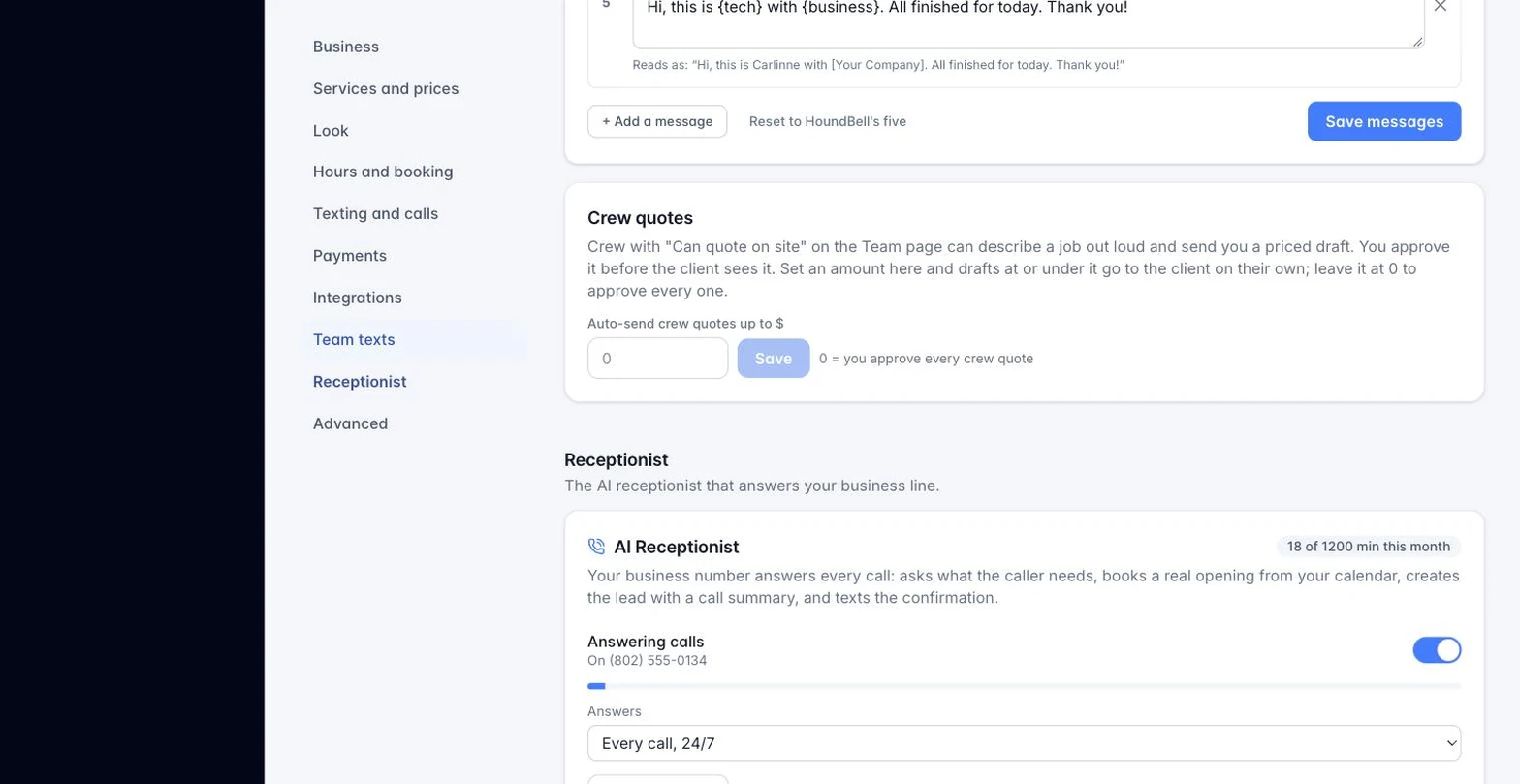
Some crew members are good at more than the work; they can describe a job to a client and get a price out the same day. Turn that on one person at a time.
- Open Team and find the crew member’s row.
- Check Can quote on site. They can now describe a job out loud from the boarding pass and send you a priced draft. Nothing reaches the client until you approve it, unless you set an auto-send limit.
- To let small jobs go straight to the client without waiting on you, open Settings and find Crew quotes, next to Team texts. Set Auto-send crew quotes up to $ to a dollar amount, and any draft at or under it is emailed to the client the moment your crew sends it. Leave it at 0 and every crew quote waits for your approval, no matter the size.
What approval looks like: a crew-drafted quote that needs you shows up as a “Waiting for your approval“ band at the top of your Quotes tab, and as an item in your Daily Brief. You see who drafted it, what they said, any photos, and the priced lines, then you approve and send it, edit it first, or decline it with a note back to the crew member. See Approve a quote your crew drafted for the full walkthrough of that screen.
A crew quote that goes out under your auto-send limit still shows up on your Quotes tab like any other, and you get a push notification the moment it goes out, so you always know what left the business under your name.
Turning off Can quote on site for someone stops new quotes from them immediately; anything they already sent stays exactly as it is.
Still stuck?
Email us and a person will answer. Include your workspace name, and the quote or invoice number if it is about one.
Email support@houndbell.com