
How to set up push notifications
Leads contacted within five minutes convert dramatically better. Push notifications are how you get there: your phone buzzes the moment a new lead submits a form on your website, when a client accepts a quote, and when an invoice gets paid by card. Tap the notification and you’re looking at the details. No email refreshing, no checking the app “just in case.”
Notifications are free, they’re per device (your phone, your tablet, and your computer each have their own switch), and they take about ten seconds to turn on.
On your phone
- First, make sure HoundBell is installed on your home screen. If it isn’t yet, follow Install HoundBell on your phone first; it takes two taps.
- Open HoundBell from the icon on your home screen. On iPhone this part matters: Apple only allows notifications for web apps opened from the home screen icon, not from a Safari tab.
- Near the top of your dashboard you’ll see the banner: “Get a ping on this device the moment a new lead arrives.” Tap Turn on notifications.
- Your phone asks for permission. Tap Allow.
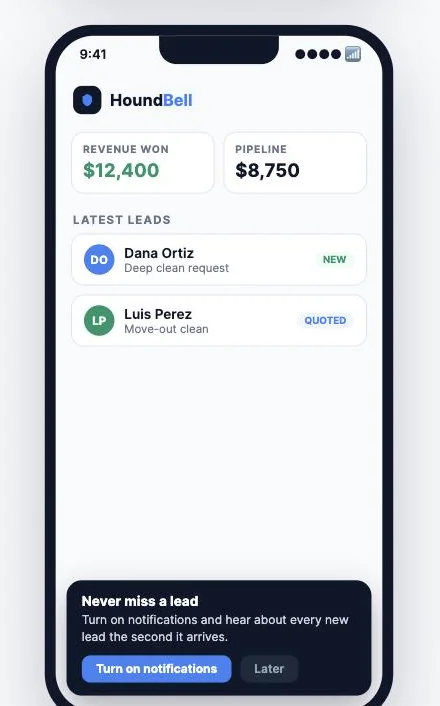
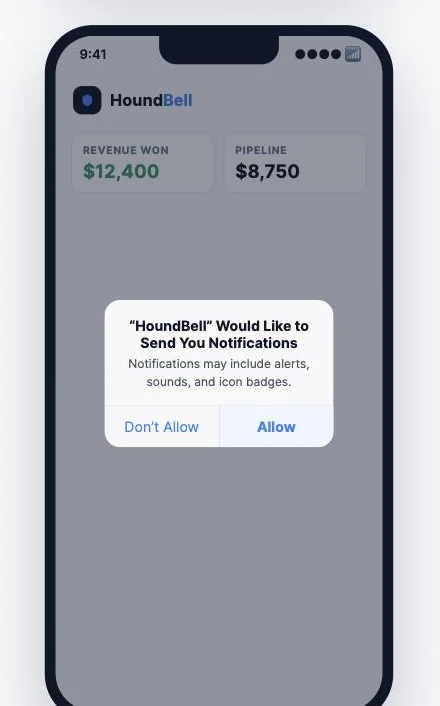
Done. The next lead that comes in will buzz your phone, even if HoundBell is closed and your phone is in your pocket.
On your computer
Same idea, no install required:
- Open app.houndbell.com in Chrome, Edge, or another modern browser.
- Click Turn on notifications in the banner at the top of your dashboard.
- Click Allow when the browser asks.
Now a new lead pops a notification in the corner of your screen while you work.
What you’ll be notified about
| Notification | When it fires |
|---|---|
| 🔥 New lead | Someone submits a form on your website |
| ✅ Quote accepted (or declined) | A client answers a quote you sent |
| 💰 Invoice paid | A client pays an invoice by card |
Each notification opens the right page when you tap it: new leads open your Leads page, quote and payment alerts open Quotes & Invoices.
Questions and fixes
I don’t see the banner.
On iPhone, make sure you opened HoundBell from the home screen icon rather than inside Safari; the banner only appears where notifications are possible. If you dismissed the banner with the X earlier, it stays hidden on that device. And if you already turned notifications on, the banner has done its job and won’t show again.
I tapped Allow but nothing buzzes.
Check your phone’s Focus or Do Not Disturb mode first; it silences HoundBell like any other app. Then check your phone’s notification settings for HoundBell and make sure alerts are allowed.
How do I turn them off?
In your phone’s settings, find HoundBell under notifications and switch them off, exactly like any app. On a computer, click the padlock or settings icon next to the address bar and change Notifications to Block.
Do my team members get notifications?
Everyone chooses for themselves. Each team member can turn on notifications on their own devices the same way.
Does this cost anything or drain my battery?
No and no. Notifications ride the same system your other apps use, and HoundBell only sends one when something real happens in your business.
Still stuck?
Email us and a person will answer. Include your workspace name, and the quote or invoice number if it is about one.
Email support@houndbell.com