
Your first 15 minutes
When you sign up you name your business and pick your trade, and HoundBell builds a pipeline, a website form, and an agreement template for it. Right after you sign up, a short setup walks you through seven screens, one question each, with Back and Skip on every optional one; each screen saves as you go, so you can leave and come back from the dashboard’s Getting started card. The screens, in order:
- Bring your clients over. Leads, then Import. Pick the tool you’re leaving (Jobber, Housecall Pro, ZenMaid, HoneyBook, HubSpot, Pipedrive, HighLevel, or a spreadsheet) and HoundBell matches the columns. Tomorrow morning’s Daily Brief is built from this list. No list yet? Add one lead by hand.
- Set your hours and claim your booking link. The days you take bookings and your hours, with a switch for different hours on some days (Saturday mornings only, say), and your shareable booking page. Breaks in the day and a buffer between jobs live on Settings. That page works from Instagram, Google, or a QR code with no website at all.
- Put your form on your website (optional). Sites, then connect: the plugin for WordPress or one script tag for any other site. Your trade’s form is already built.
- Add your logo and your review link. Logo and color ride every quote, invoice, and email. The Google review link is what makes review requests automatic after a job.
- Add your crew (optional). Team, then Field crew: a free login for each person doing the work.
- Turn on texting (optional). Growth and Scale claim a number on Settings. Starter adds texting on Billing for $10 a month.
- Get paid online. Connect Stripe on Settings and every invoice gets a Pay now button.
The Getting started card on the dashboard shows what is left and can be dismissed. The pulsing dot in the sidebar always points at the suggested next step.
Want a guided look before you dig in? Press Show me around on the Getting started card, or at the top of Help, and a side panel walks you through where things live, one screen at a time, without blocking anything. It only opens when you ask for it, and you can close it at any point.
From there, explore the sidebar:
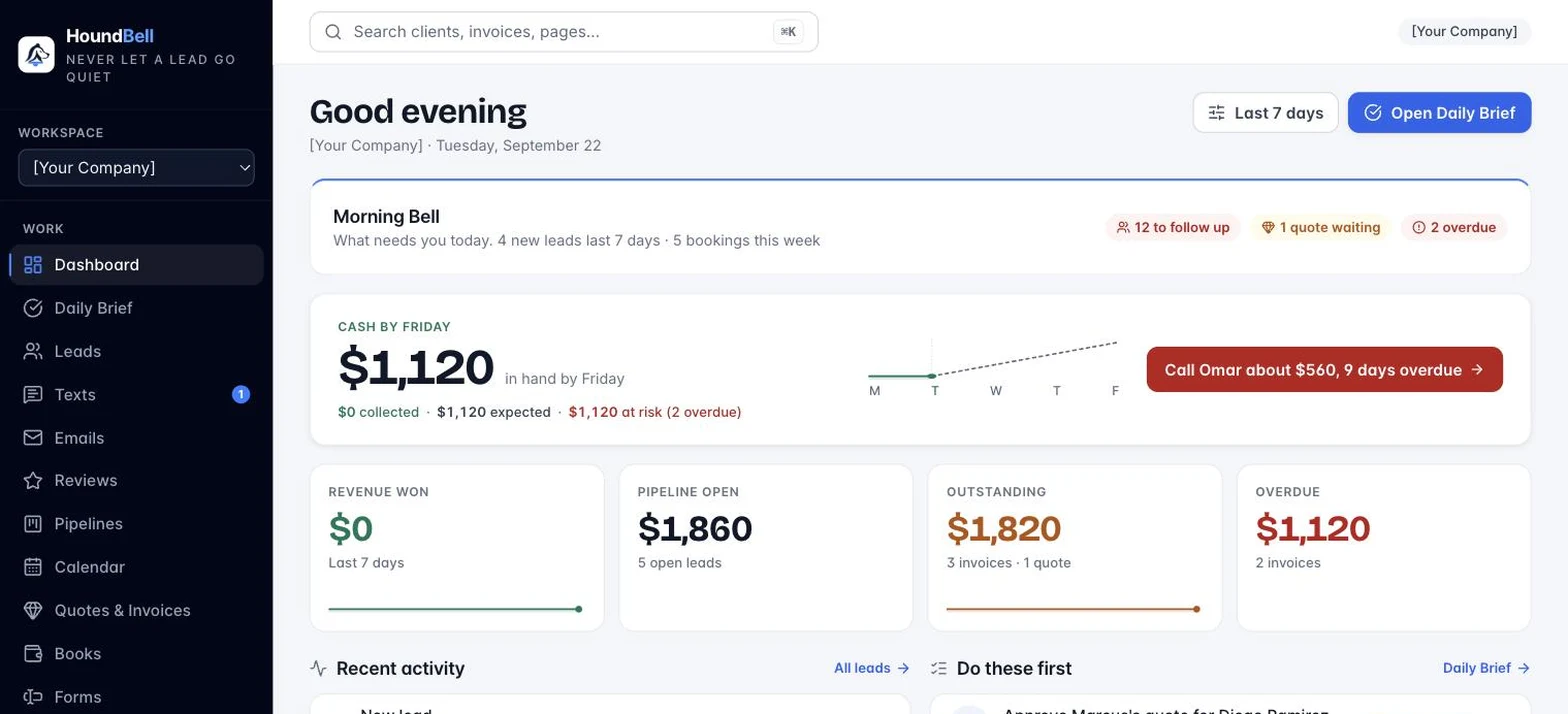
- Dashboard: your numbers at a glance. Leads, revenue won, pipeline potential, revenue by service.
- Daily Brief: your to-do list, generated automatically from where each lead sits.
- Leads: every captured lead, live as they come in.
- Calendar: your schedule, including booking requests from your website waiting for a yes.
- Quotes & Invoices: quotes, signable contracts, invoices, and client statements in one place.
- Pipelines: drag-and-drop boards that track every deal.
- Forms: build and design the forms your website shows.
- Sites: connect your website, WordPress or any other.
- Settings: your logo, color, hours, booking link, texting number, review link, and payment setup.
- Team: office users with area-by-area access, and free field crew logins.
- Emails: every email HoundBell sent to a client, readable exactly as they saw it, with delivered, bounced, and opened. The same list sits on each client card next to Texts. Settings has a “See what your clients receive“ preview of every template with your logo and color.
- Help: search the help center without leaving the app.
- Account: change your password.
- Dark mode: toggle the look. Your choice is remembered.
Still stuck?
Email us and a person will answer. Include your workspace name, and the quote or invoice number if it is about one.
Email support@houndbell.com