
Webhooks: send your events anywhere
Webhooks send your HoundBell events to other tools the moment they happen. Add a destination URL and HoundBell sends it a signed message for each event you pick: a new lead in a Google Sheet, a paid invoice pinging Slack, a booked job updating your own system. This is how you connect Zapier, Make, or anything your developer builds. Available on the Growth and Scale plans.
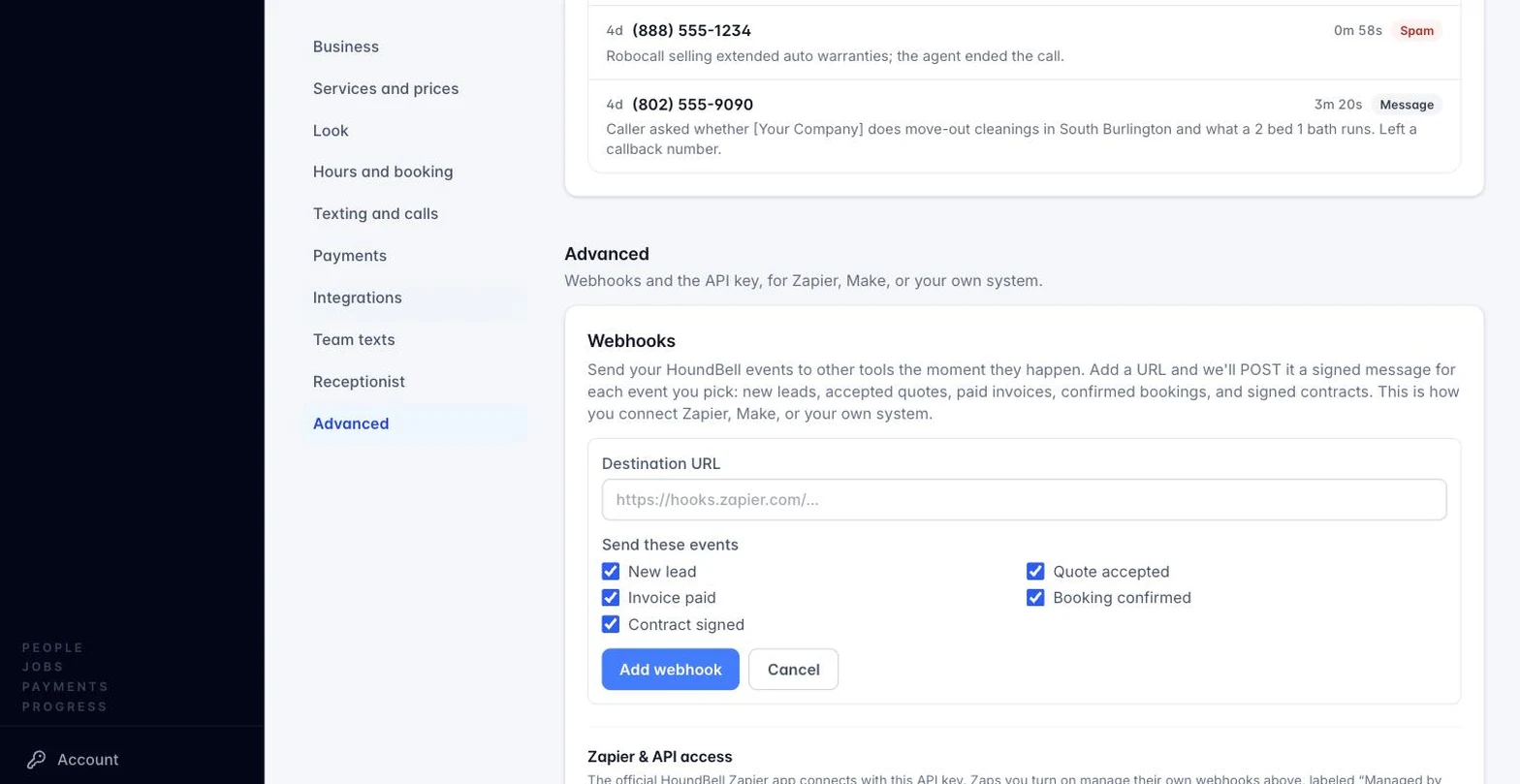
Set one up
- Open Settings and find Webhooks, then press Add a webhook.
- Paste the destination URL (the tool receiving your events gives you this).
- Pick which events to send: New lead, Quote accepted, Invoice paid, Booking confirmed, and Contract signed. All five are on by default.
- Press Add webhook. From that moment, every event you picked is delivered as it happens.
Connect Zapier in about a minute
- In Zapier, create a Zap with the trigger Webhooks by Zapier → Catch Hook. Zapier shows you a URL.
- Paste that URL into HoundBell as the destination and save.
- Trigger a test (add a lead, or submit your own form) so Zapier catches a sample, then point the Zap at any of its thousands of apps: Google Sheets, Slack, Mailchimp, Facebook Lead Ads and more.
Make and similar tools work the same way with their own webhook trigger. Better yet, the official Zapier app (Growth and up) skips the copy-and-paste entirely: see Connect HoundBell to Zapier.
For your developer
Each delivery is an HTTPS POST with a signature header, so the receiving system can verify the message really came from your HoundBell workspace and has not been altered. If your endpoint is down, deliveries for that event are not retried forever; keep the receiver simple and fast.
Still stuck?
Email us and a person will answer. Include your workspace name, and the quote or invoice number if it is about one.
Email support@houndbell.com