
Field crew logins
See the crew view in the live demo: what a crew member sees on their phone, no login, nothing saved.
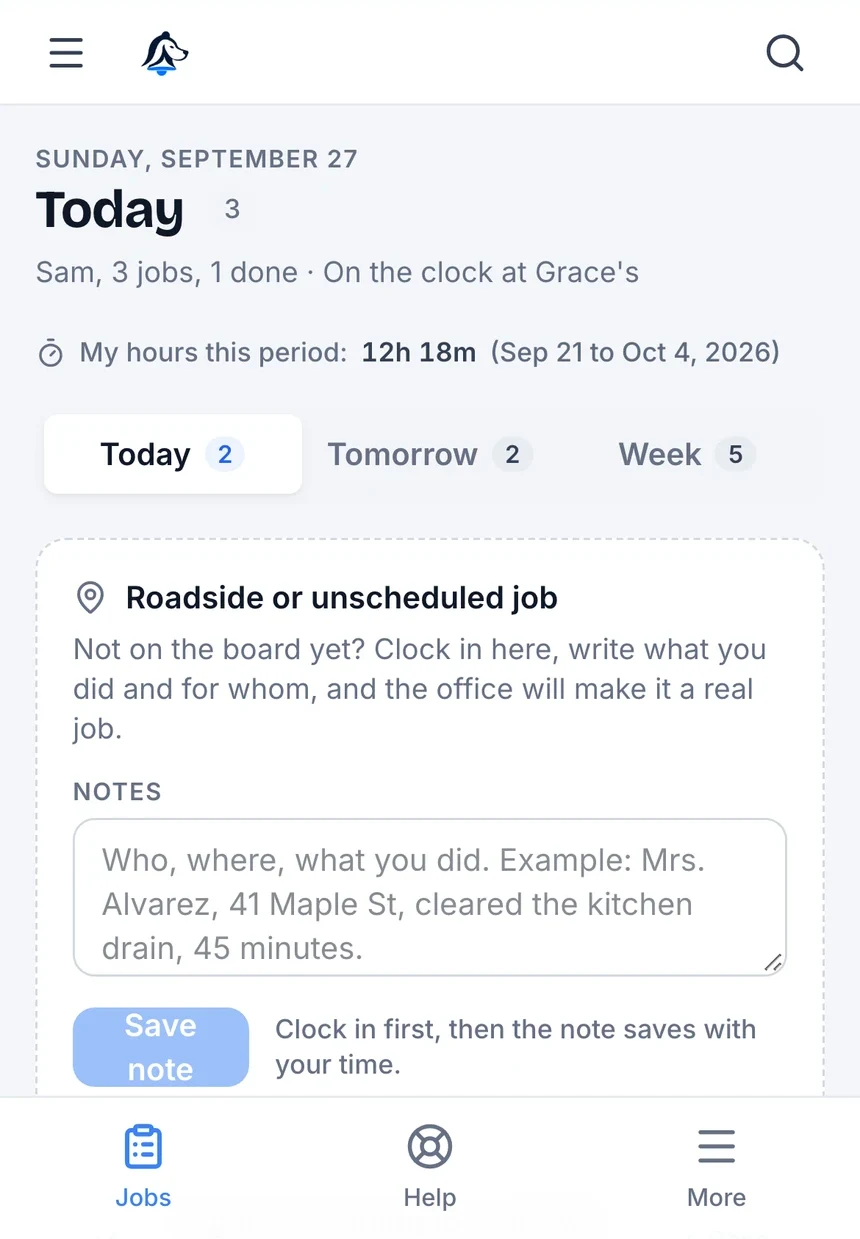
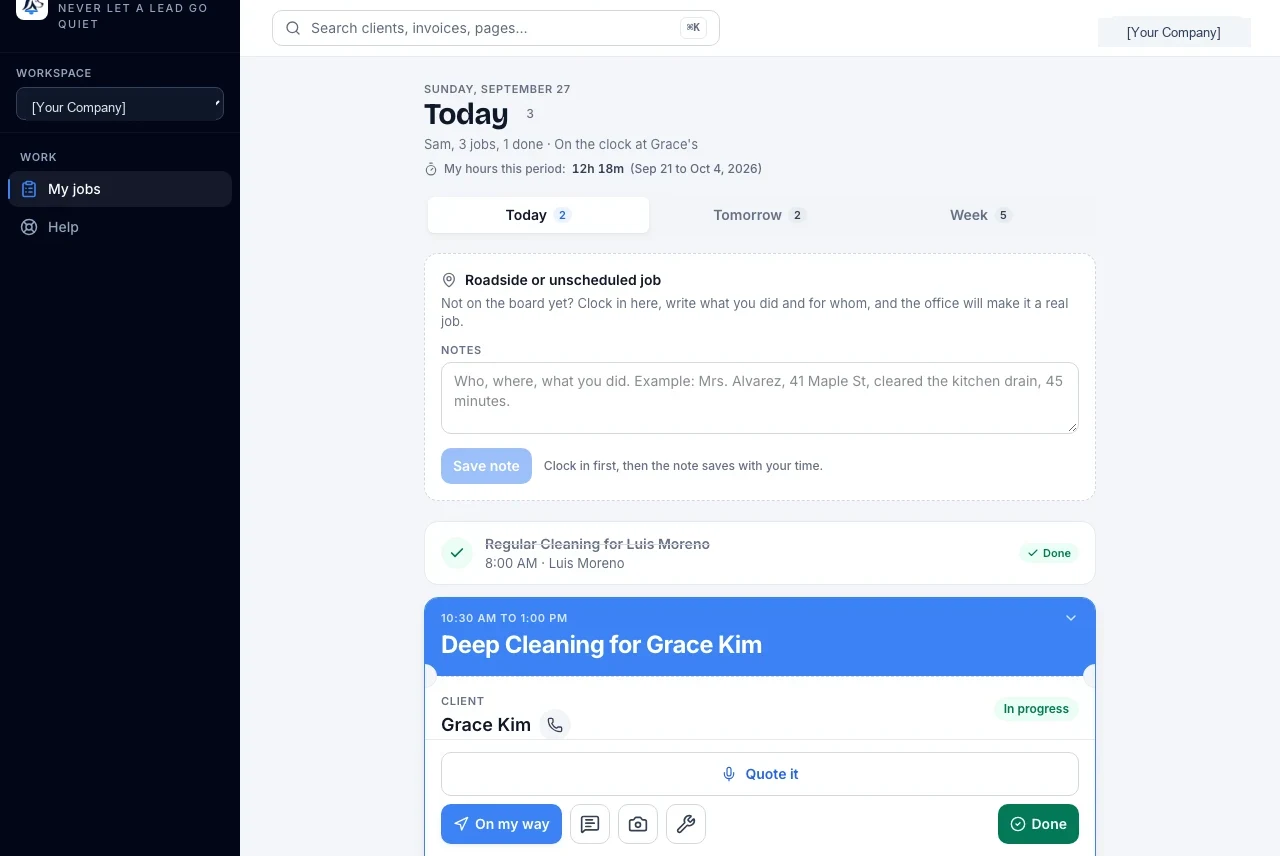
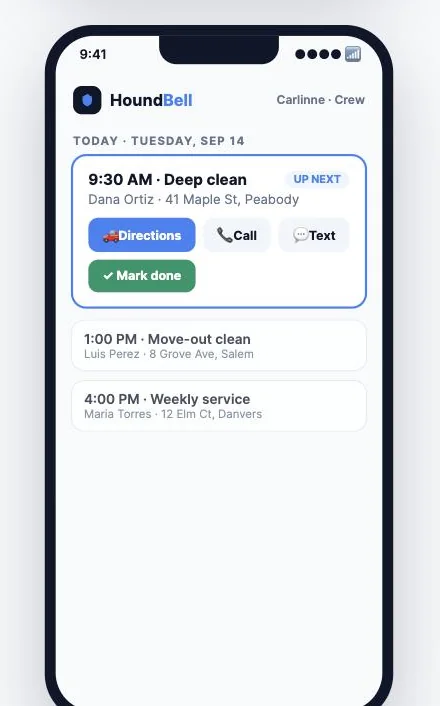
A field crew login is free and never uses a seat. It is for the people doing the work: they see only the jobs assigned to them or their crew, the client, one-tap directions, job notes, and a Done button. Nothing else in HoundBell is visible to them, not even for a moment while the page loads.
Adding one. On Team, choose Field crew, enter their first and last name and email, and add. They get an email written for a crew member with a temporary password and a “See my jobs” button.
Their first sign-in. Before anything else, they fill in a short setup: first name, last name, and mobile number, with a strong nudge to set their own password. Their name is what clients see on texts (“Hi, this is Carlinne with…”). Their number is for you, not clients.
Reset a password. Each member row on Team has Reset password. It sets a new temporary password and emails it to them; the old one stops working right away.
Texting from a job. Crew never type a text. They tap one of your canned messages and it goes out from your business number, word for word, with their first name and your business name filled in. Replies land in your Texts inbox and on the client’s card. Edit the messages on Settings under Crew text messages (up to eight; HoundBell ships five). This follows your texting plan: Growth and Scale include it, Starter needs the texting add-on. The Call button dials from the crew member’s own phone.
Marking a job done. Done is only available on the day of the job, not before. When they mark it done, the client’s deal moves to your pipeline’s Won stage, a note on the client records who finished the job and when, and the automatic review request follows on its normal schedule: a couple of hours after the job’s end time, by email and text, once per client, if review requests are turned on in Settings with a review link. Undo is allowed only on the same day; after midnight the job is locked and shows as Done under “Show done.”
Job photos. Each job card has a Photos button. The crew member taps Before when they arrive or After when they finish, the phone camera opens, and the picture is saved to that job with a Before or After tag (large photos are shrunk on the way in so they upload fast on a job site). The office sees the same photos on the booking in the calendar, in a Photos section under the notes, and on the client’s card a small camera icon with a count sits next to any appointment that has photos. Office users can add photos from their computer and remove one they do not want. Crew cannot delete photos; if a shot is wrong, they take another and the office tidies up.
Still stuck?
Email us and a person will answer. Include your workspace name, and the quote or invoice number if it is about one.
Email support@houndbell.com