
Approve a quote your crew drafted
Where: the Quotes tab, and your Daily Brief.
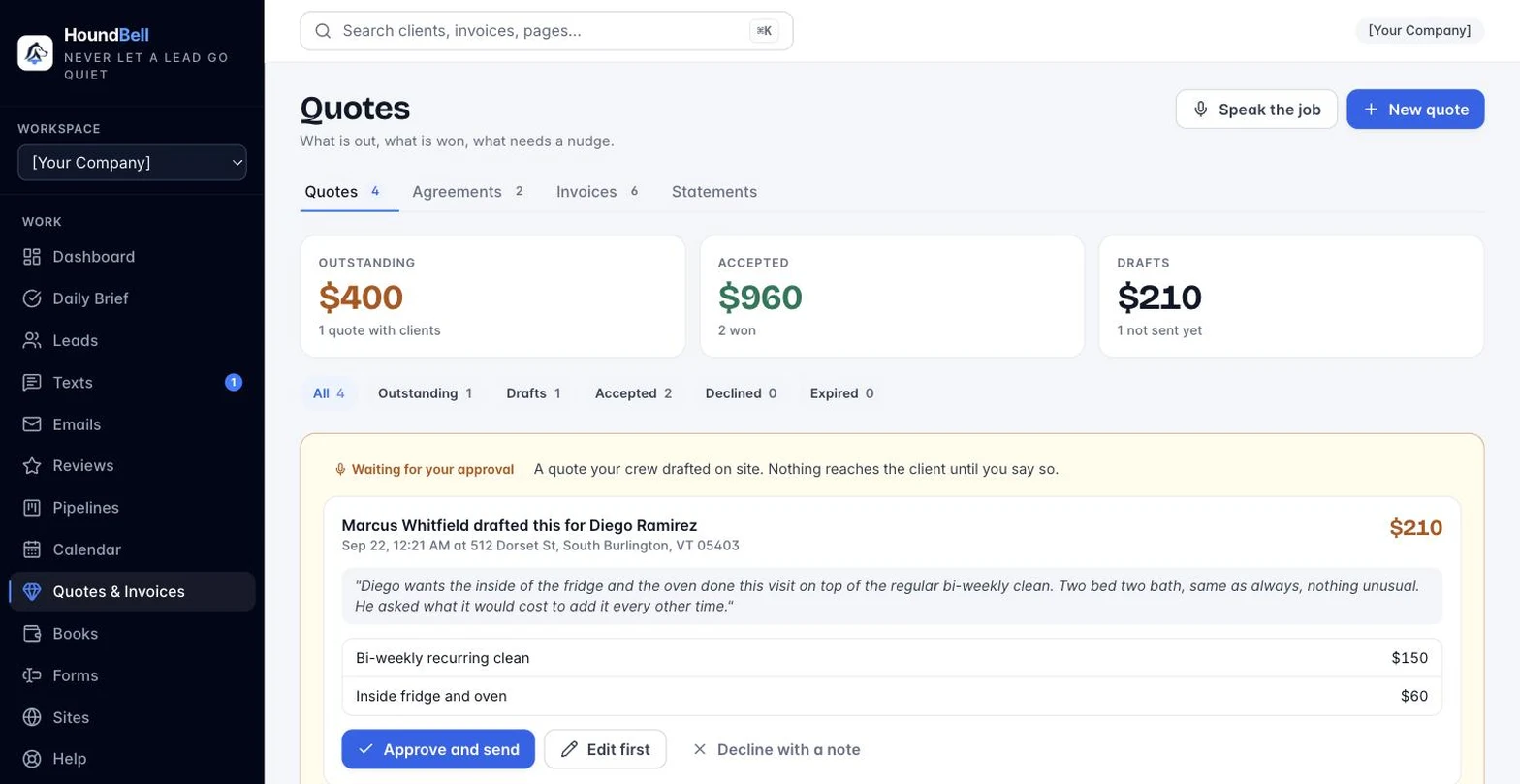
When a crew member with “Can quote on site“ describes a job and sends it in, it lands on your Quotes tab as a Waiting for your approval band at the top of the page, above your regular quote list. The same quote shows up as an item in your Daily Brief so you never have to go looking for it.
Each card in the band shows who drafted it and for which client, the transcript of what they said, any photos they took, and the priced line items with a running total. Nothing here has gone to the client yet.
From there you have three answers:
- Approve and send. The quote goes to the client exactly as any other quote would.
- Edit first. Open it, adjust lines or wording, then send.
- Decline, with a note back to the crew member.
- Approve and send sends it to the client exactly as drafted, through the same email your own quotes use. This is grayed out if a line is missing a price or the client has no email on file; fix those first.
- Edit first opens the quote in the normal quote editor, where you can change lines, prices, or notes. Sending from there counts as your approval.
- Decline with a note keeps it from ever reaching the client. Type a short line for the crew member, such as what to change or why not this time, and they get it by push and see it on their job. The client is told nothing.
What the crew sees: the Quote it button on their job updates to show the outcome, either “Approved and sent“ with the total, or “Declined“ with your note underneath. What the client sees, if you approve: the same quote email and page any client gets, with no sign it started as a voice draft.
A quote under your auto-send limit (see Let a crew member quote on site) skips this band entirely and goes straight to the client, though it still appears on your Quotes tab afterward.
—
Still stuck?
Email us and a person will answer. Include your workspace name, and the quote or invoice number if it is about one.
Email support@houndbell.com