
Create and send a quote
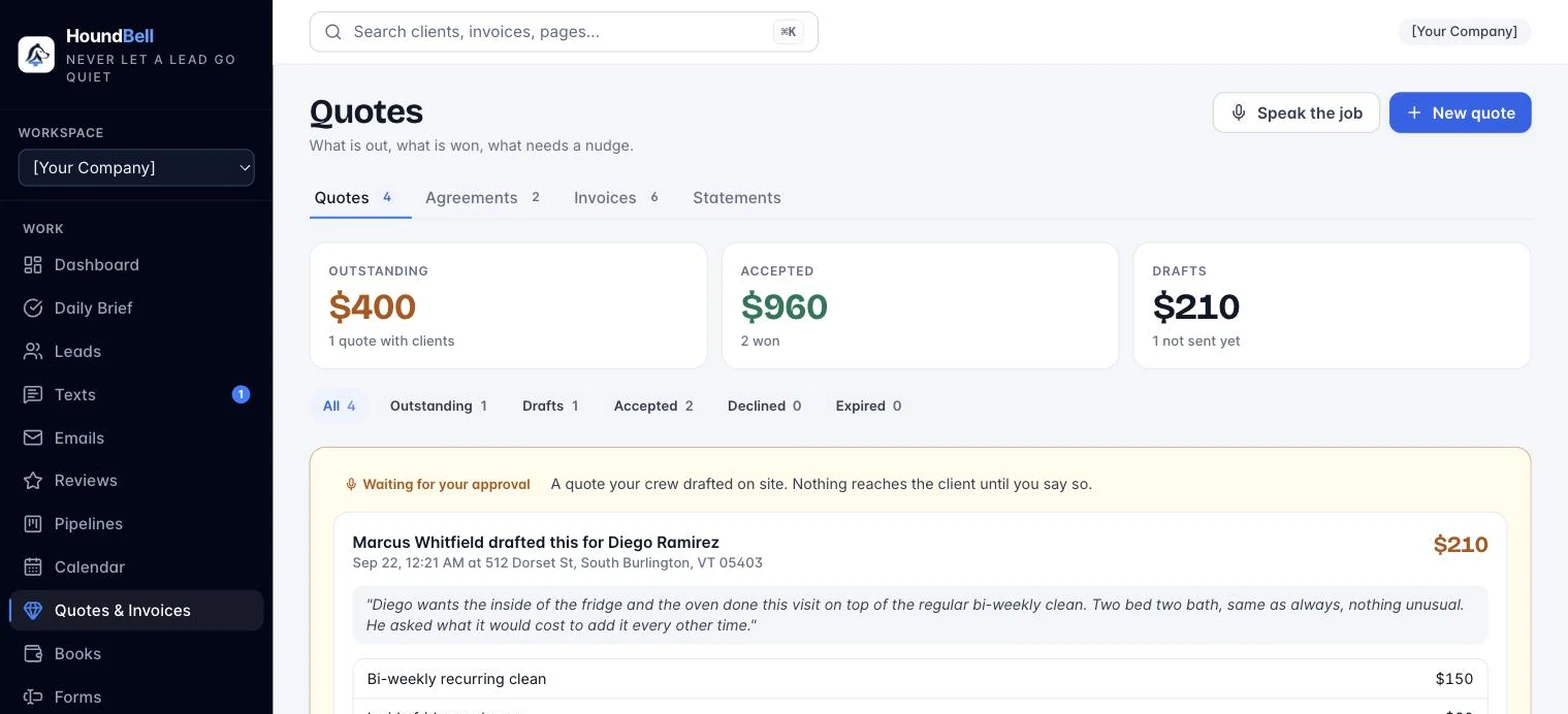
Two ways to start:
- On the Quotes & Invoices page (Quotes tab), click + New quote, then pick the client in the “Who is this quote for?” search.
- Or open any lead’s card and click + New quote in its Quotes section.
The quote builder:
- Line items: describe the work, set quantity and price. Click + Add line for more rows. The lead’s service and value pre-fill the first line. The total updates as you type.
- Notes for the client: optional, shown on the quote. What’s included, scheduling, terms.
- Valid until: optional expiration date. After it passes, an unanswered quote shows as Expired and can no longer be accepted.
- Click Send quote to email it to the client now, or Save draft to finish later. Drafts are private until sent.
The client gets a branded email with your logo, the itemized quote, and a View and accept your quote button. Replies to the email go straight to your inbox.
Still stuck?
Email us and a person will answer. Include your workspace name, and the quote or invoice number if it is about one.
Email support@houndbell.com