
Quote it from the job
See the crew view in the live demo: what a crew member sees on their phone, no login, nothing saved.
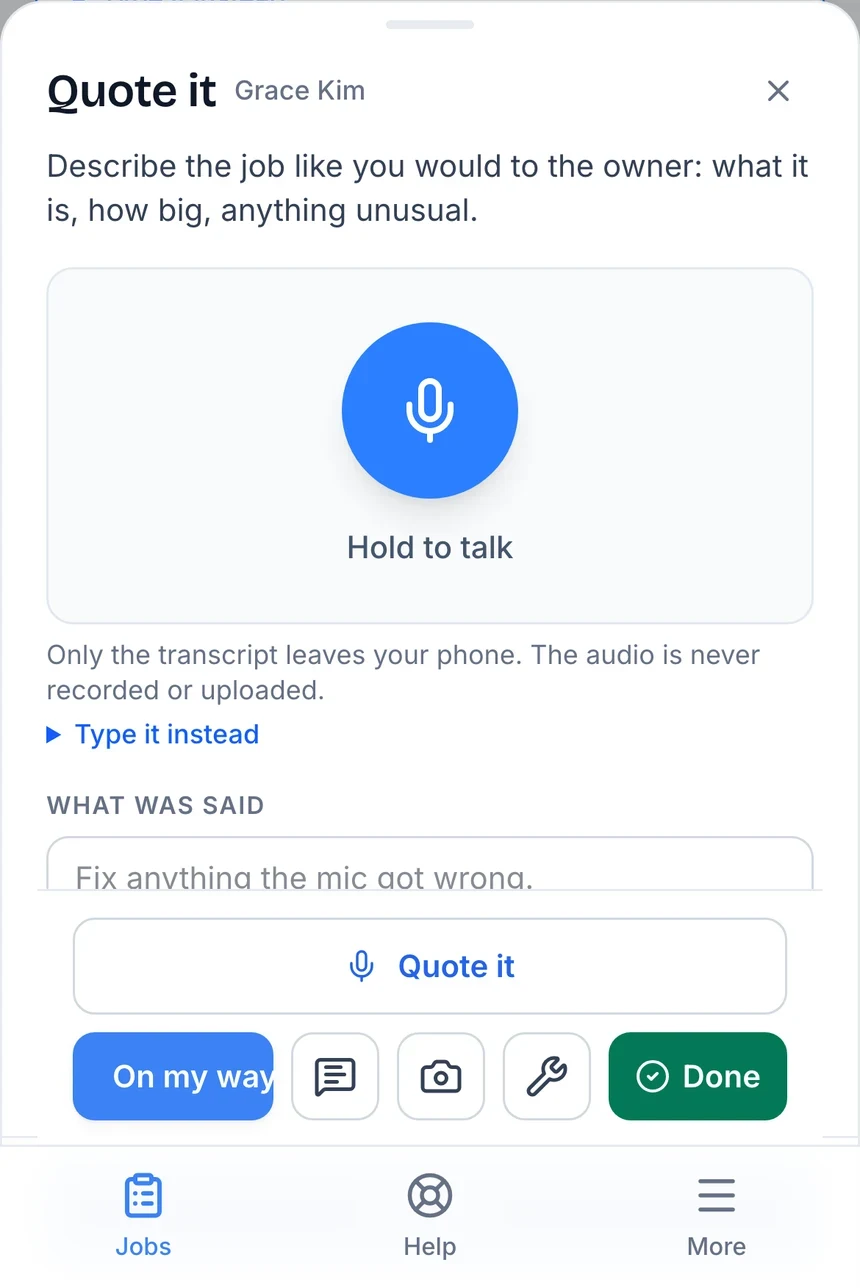
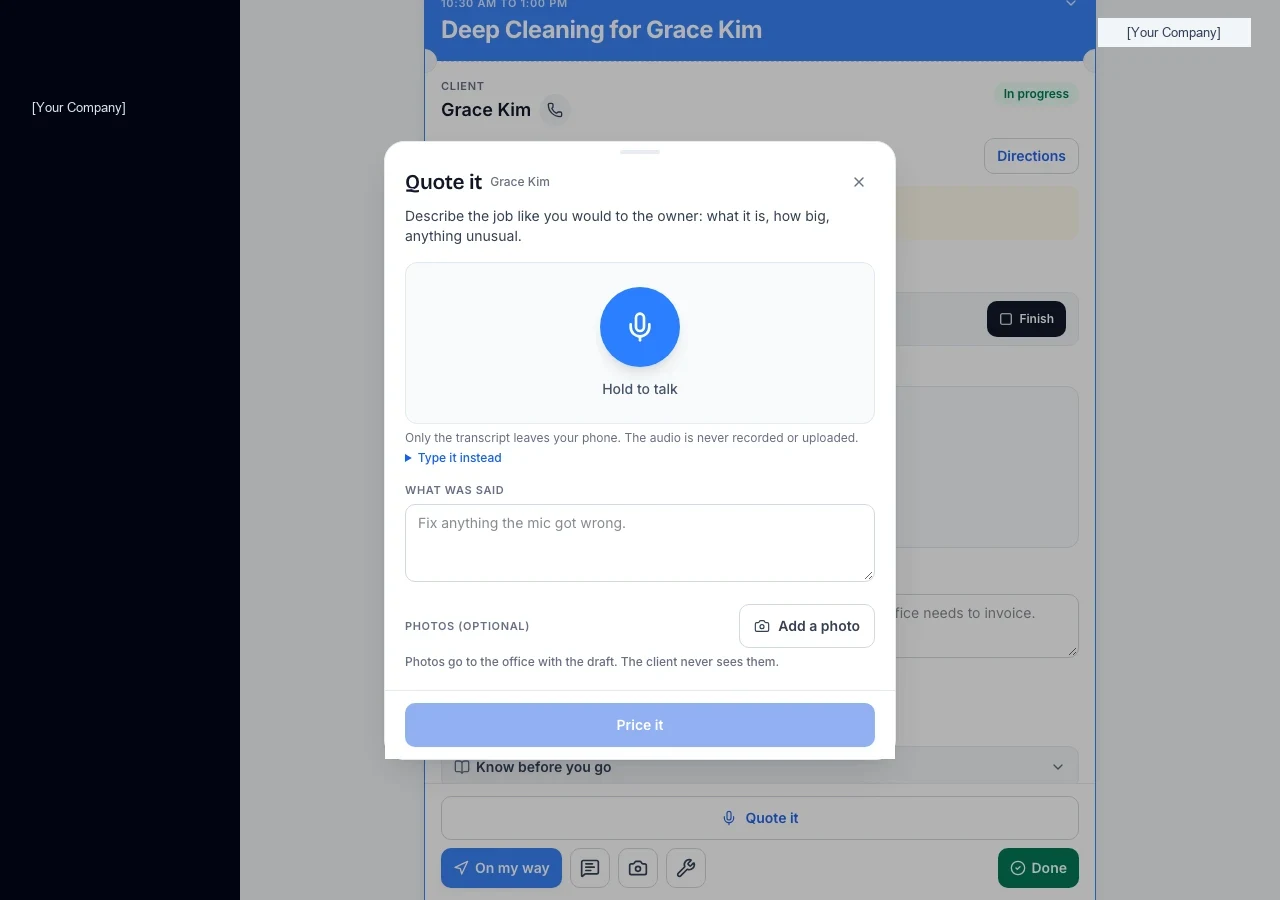
Where: your job card in the field crew app.
If the office turned on “Can quote on site“ for you, a Quote it button sits right on the job. Tap it to price extra or new work on the spot instead of calling it in.
Hold the mic button and describe the job the way you would tell the owner: what it is, how big, anything unusual. Lift your finger when you are done, or type it instead if that is easier. You can add a photo or two before you price it; the office sees them with the draft, the client never does.
Tap Price it. HoundBell reads back what you said and matches it against the business’s own services and prices, never a number it made up. You get an itemized draft with a total. If your description used your own words, fix the transcript first so the draft matches. If anything you said got auto-corrected wrong, you can edit that text box directly.
If something the price depends on was not said, up to three short questions come back, like how many units or whether a ladder is needed. Answer by tapping a quick choice, typing, or holding the mic again; it fills in the next open question.
When every question has an answer, tap Send to office. The button then shows what happened:
- Waiting for approval while the office reviews it.
- Approved and sent, with the total the client received.
- Declined, with the office’s note underneath.
- Quote sent to office means it is waiting for someone to approve it before the client sees anything.
- Approved and sent means the office (or your auto-send limit) sent it straight to the client.
- Declined shows the office’s note, if they left one, so you know what to fix next time.
Still stuck?
Email us and a person will answer. Include your workspace name, and the quote or invoice number if it is about one.
Email support@houndbell.com