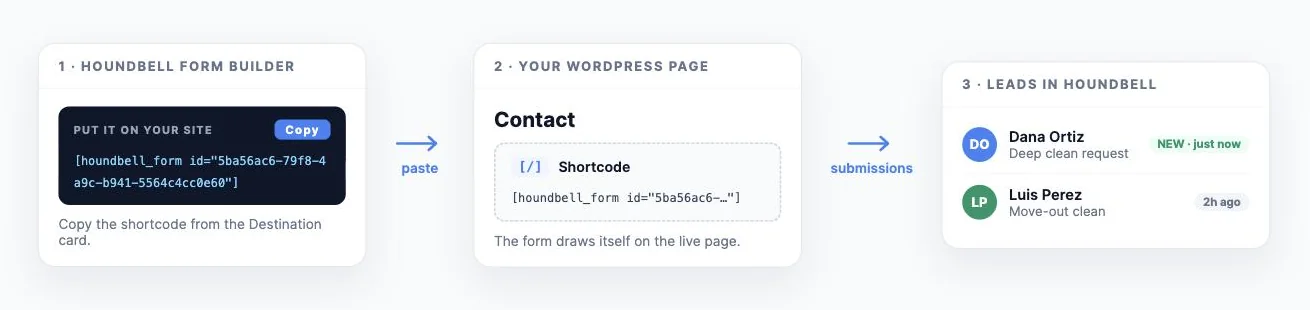
Put your form on your website
Your form is built in HoundBell; this article puts it on your website where visitors can fill it out. The whole job is copying one line (the shortcode) and pasting it into a WordPress page. About two minutes.
Before you start, make sure of two things in HoundBell: your site shows a green Connected badge on the Sites page, and your form’s WordPress site dropdown (in the form builder’s Destination card) is set to that site, saved with Save & publish.

Step 1: Copy your form’s shortcode
Open Forms in HoundBell and click your form. In the Destination card you’ll find the line Shortcode for this form, which looks like this:
[houndbell_form id="xxxxxxxx-xxxx-xxxx-xxxx-xxxxxxxxxxxx"]
Copy the whole thing, brackets included. Every form has its own shortcode, so if you have three forms, each gets its own.

Step 2: Add a Shortcode block to your page
- In your WordPress admin, open the page where the form should live (Pages, then edit the page, or Add Page for a new one).
- Click the blue + button in the top left corner of the editor to open the block inserter.
- Type shortcode in the search box.
- Click the block called Shortcode with the [/] icon.
One caution: WordPress may also show third-party plugins under “Available to install” in the same search results. You don’t need any of them. The built-in [/] Shortcode block at the top is the one you want.

Step 3: Paste and publish
Paste your shortcode into the block, exactly as you copied it. Then click Publish (or Update if the page already exists).

Step 4: See it live
Open the page on your website. Your form renders right there, with the design you built in HoundBell, sitting naturally inside your site’s look:

Fill out a test submission yourself: within seconds the lead appears on your Leads page, your notification email arrives, and if you’ve turned on push notifications, your phone buzzes.
Using the classic editor or a page builder?
The shortcode works everywhere WordPress accepts text:
- Classic editor: paste the shortcode straight into the content area, on its own line.
- Divi: add a Text or Code module and paste the shortcode into it.
- Elementor: use the Shortcode widget (search “shortcode” in the widget panel) and paste it there.
- Other builders: look for a Text, HTML, or Shortcode element; any of them works.
Good to know
- Edit the form anytime without touching your website again. Change fields, design, or the success message in HoundBell, click Save & publish, and the live form updates instantly. The shortcode you pasted never changes.
- Deleting the block removes the form from that page and nothing else; your form and its leads are untouched in HoundBell.
If the form doesn’t appear
- Check the page is published and you’re looking at the live page, not a preview of an old version.
- Check the form’s WordPress site dropdown in HoundBell is set to this site, and hit Save & publish.
- Check the site’s green Connected badge on the Sites page.
- Compare the pasted shortcode to the one in the builder; a missing bracket or character breaks it.
- If your site uses a caching plugin, clear the cache and reload the page.
Still stuck? Email support@houndbell.com with the page link and we’ll take a look.
Still stuck?
Email us and a person will answer. Include your workspace name, and the quote or invoice number if it is about one.
Email support@houndbell.com