
Show a field only when it matters
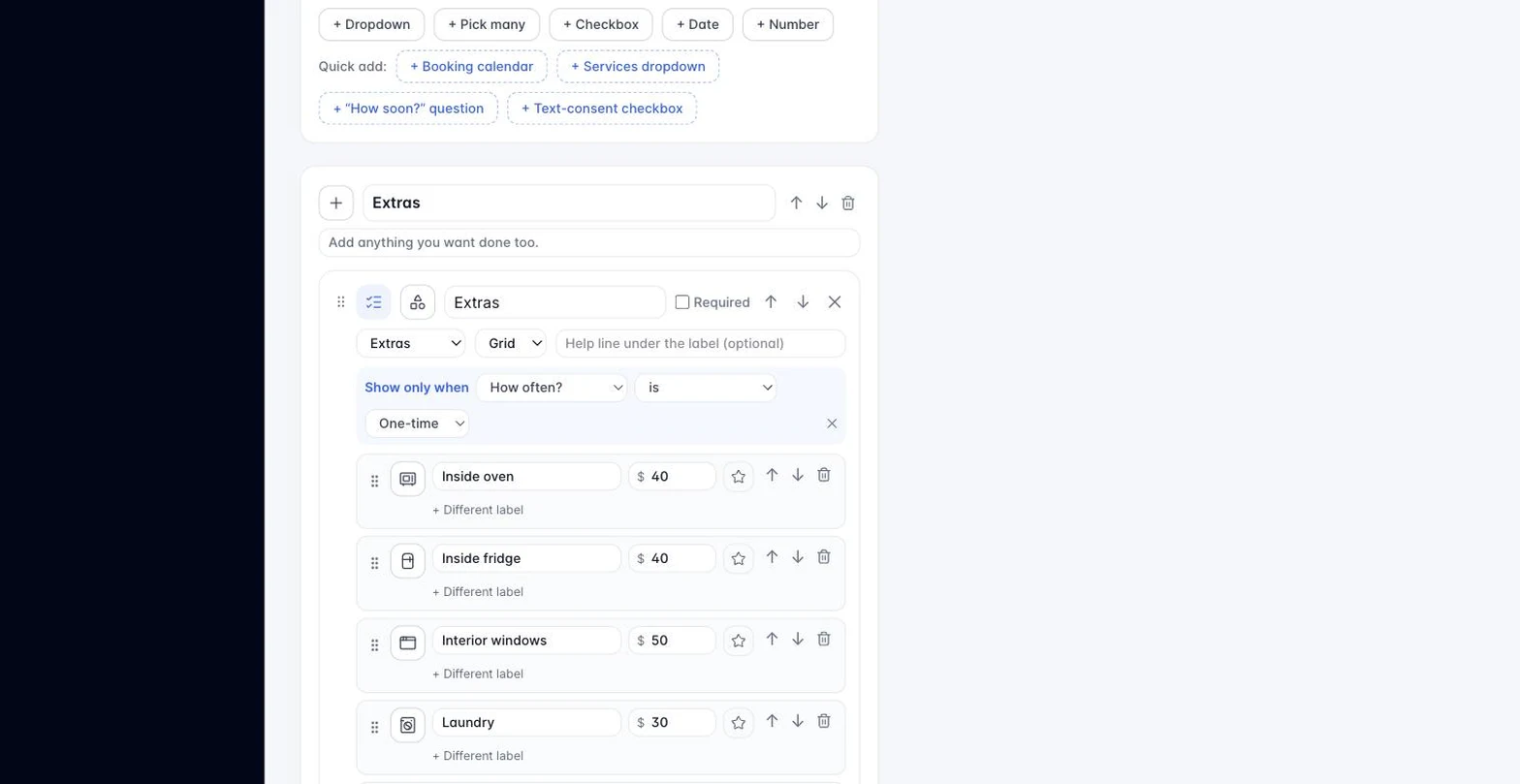
Ask the follow-up question only when the answer calls for it. A “Pet details” box that appears when someone checks “I have pets.” A “Move-out date” that appears when the service dropdown says “Move out.” Shorter forms get finished more often, and the people who need the extra question still get asked.
- In the form builder, find the field you want to hide by default. It must come after the field that controls it, so reorder first if you need to.
- Click + Show this field only when… under the field.
- Pick the controlling field, the condition, and the answer. The conditions on offer depend on the controlling field: a checkbox can be is checked or is not checked; a dropdown can be is, is not, or has any answer; a text field can be has an answer, is empty, is exactly, or is not.
- Save. The live preview reacts as you type, so try it right there.
How it behaves for visitors:
- The hidden field takes no space until its condition is met, then appears in place.
- A hidden field is never required, even if it is marked required, so it can’t block the submit.
- A hidden field’s answer is never sent. If someone types in it and then changes the controlling answer so it hides again, that text is dropped.
- Conditions chain. If field B shows only when A is checked, and C shows only when B is filled, hiding A hides C too.
- A Pick many controller offers includes and does not include, so the follow-up question can key off one specific choice.
It works the same everywhere the form runs: the WordPress plugin (update to 2.1.0 or later), the universal embed code, and the preview in the builder. To remove a condition, click the ✕ on the blue “Show only when” bar.
Conditional logic is part of the Growth plan and up. On Starter the builder shows an upgrade link in its place, and any condition already on a form is paused: the live form shows every field until you upgrade, and nothing is lost.
Category 4: Leads
Still stuck?
Email us and a person will answer. Include your workspace name, and the quote or invoice number if it is about one.
Email support@houndbell.com