
Add bookings yourself, and the scheduling pipeline
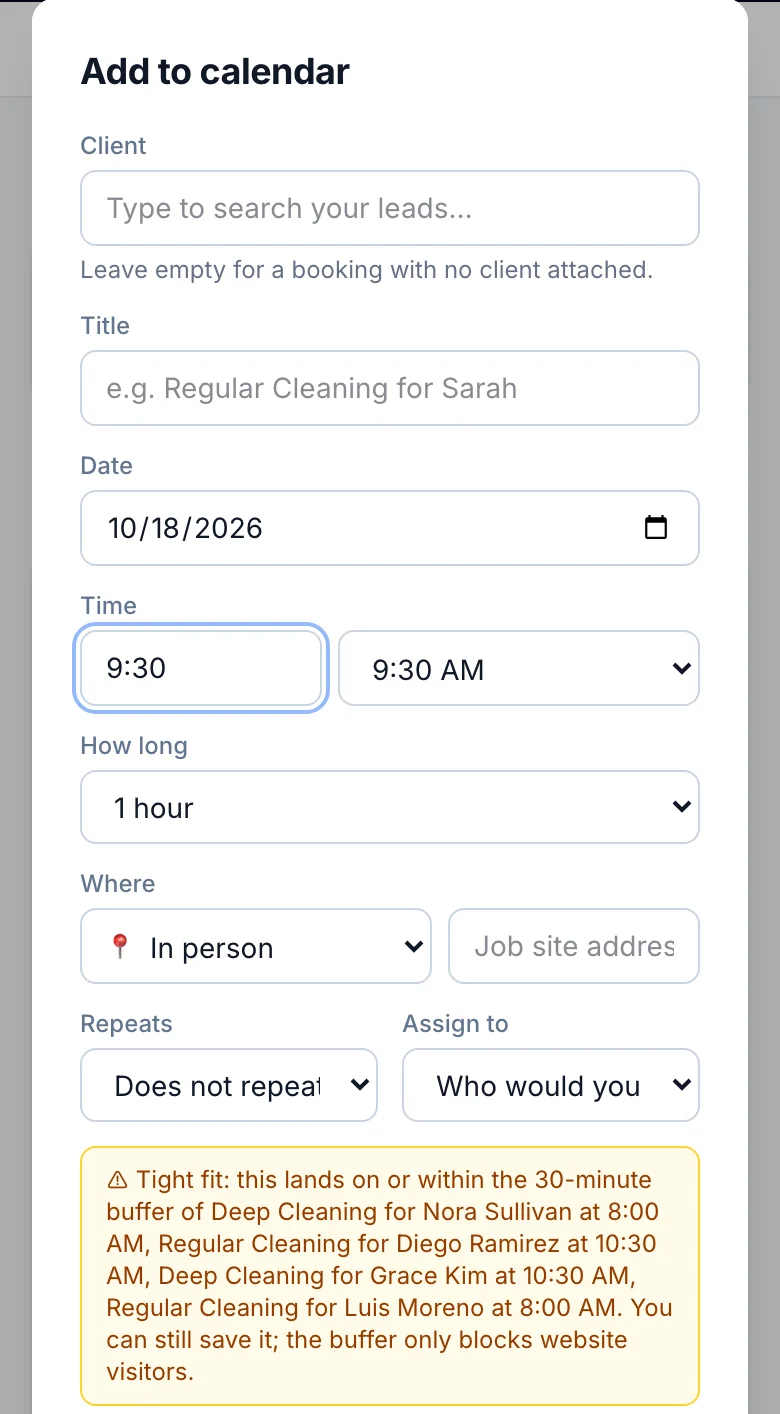
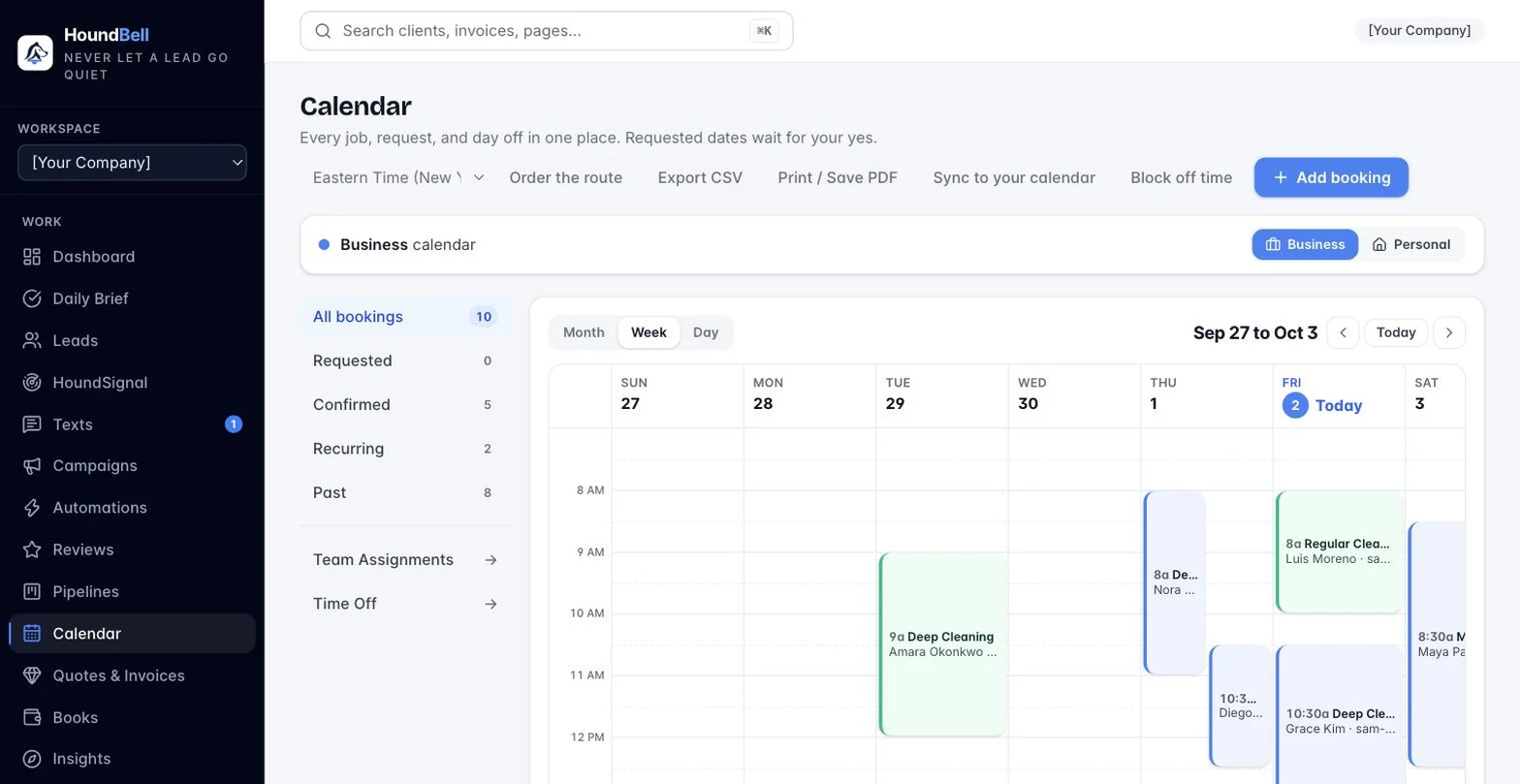
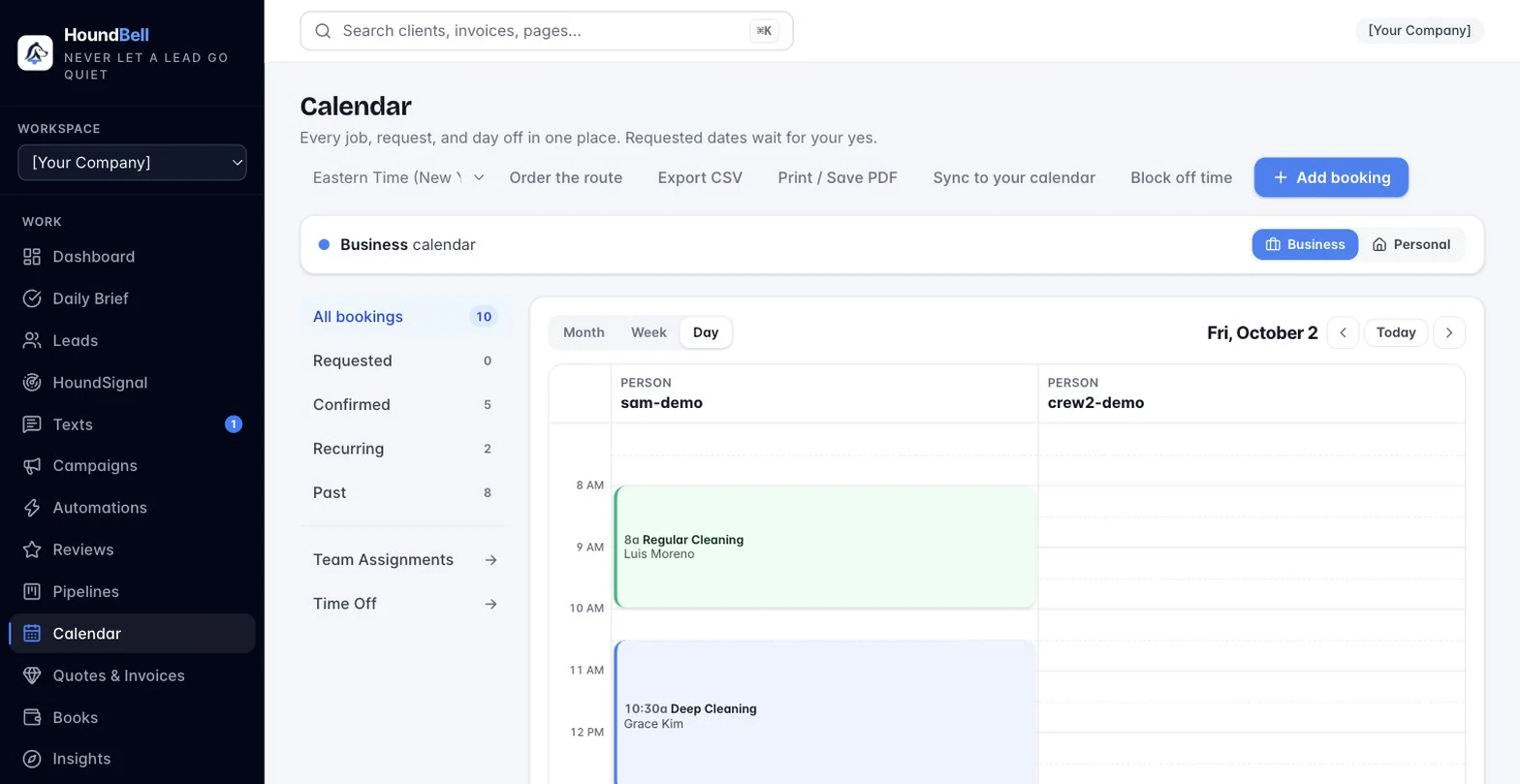
- From the calendar: click any day, or the + Add booking button. Pick the client, set the time (every booking needs one, so reminders and conflict checks always work), choose how long from the duration menu (15 minutes up to 4 hours, or Custom to type exact minutes), and choose whether to email them a confirmation.
- From a lead: the lead card has a Schedule section with + Add to calendar, prefilled with the lead’s name and service.
- From the pipeline: stages can be scheduling stages (the 📅 icon on the stage header; templates ship with it on for stages like Booked and Job Scheduled). Drag a lead into one and the booking window pops up, prefilled. That is how “moved to Scheduled Service” turns into an actual calendar entry without extra clicks.
After any booking is saved or confirmed, HoundBell offers Add it to your personal calendar with one-click Google and Apple buttons.
On a phone, the time row is two taps: type the time, pick AM or PM, and the sheet warns you when the booking lands on or inside the buffer of another job, while still letting you save it; the buffer only blocks website visitors.
Still stuck?
Email us and a person will answer. Include your workspace name, and the quote or invoice number if it is about one.
Email support@houndbell.com