
Bookings from your website to your calendar
Add a Date field to any HoundBell form and it renders on your website as a full booking calendar: a month grid, Morning, Afternoon, and Evening buttons, and exact times limited to your business hours. Visitors request a time; nothing lands on your schedule until you confirm it.
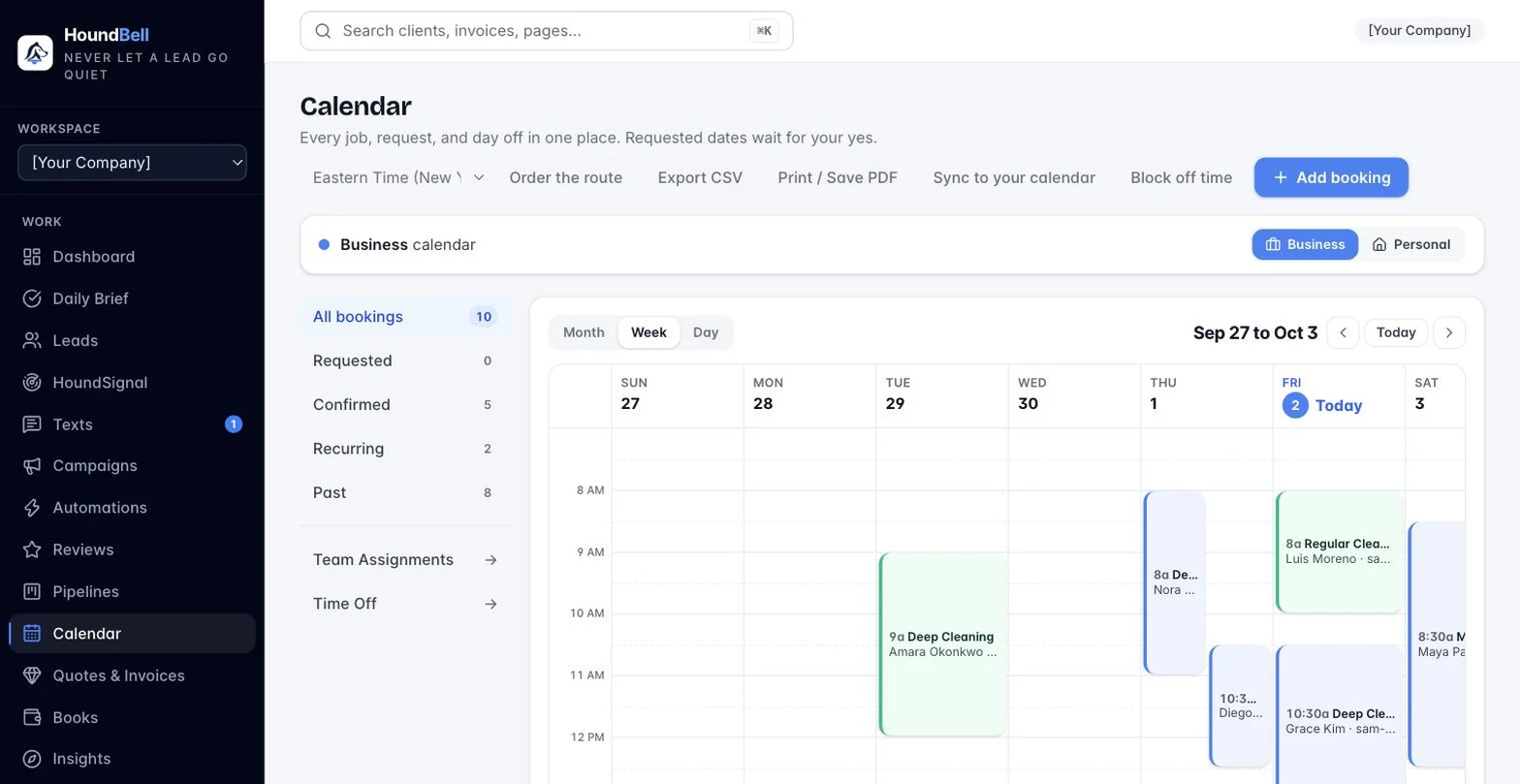
The Calendar page holds two calendars: Business and Personal. A banner above the calendar always says which one you are viewing, and the Business / Personal toggle beside it flips between them in one click. Website bookings land on the business calendar; your personal calendar is private to you and has its own sync link.
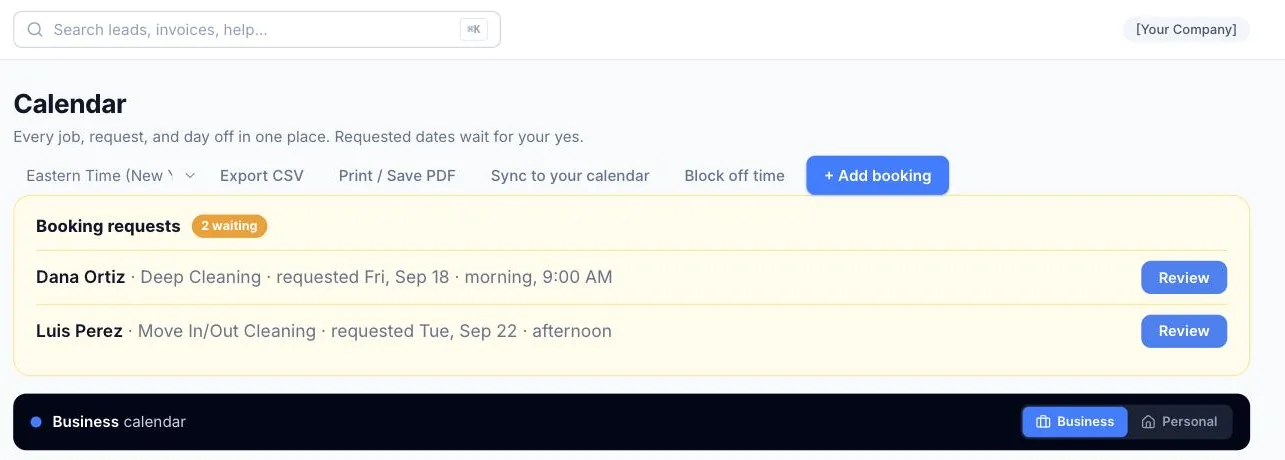
Confirm a request
- Open Calendar. New requests sit in the Requested list.
- Open the request and press Confirm. The client gets a branded confirmation email with add-to-calendar buttons, and you get a copy. Both sides see the full job sheet.
About an hour before every booking, the client gets an email and you get an email plus a phone push, worded with the actual minutes remaining.
Rescheduling and canceling. Every confirmed booking has a Reschedule button. Pick the new date and time, and the client automatically gets a “new time” email with fresh add-to-calendar buttons, reminders reset themselves to the new time, and the move is recorded on the client’s card. Canceling always asks for a reason, which is saved to the client’s notes; canceled bookings leave the calendar but stay on the client’s card as history. Team members with Calendar access can confirm, decline, create, and reschedule bookings themselves; canceling a confirmed booking sends the account owner an approval request instead.
No double-booking
The website picker checks your real calendar every time a visitor clicks a day and greys out taken slots, buffer included. In the app you get a warning before you double-book yourself, and booking the exact same slot requires typing override so it is always a decision.
Add a booking yourself
Press + Add booking on the Calendar page.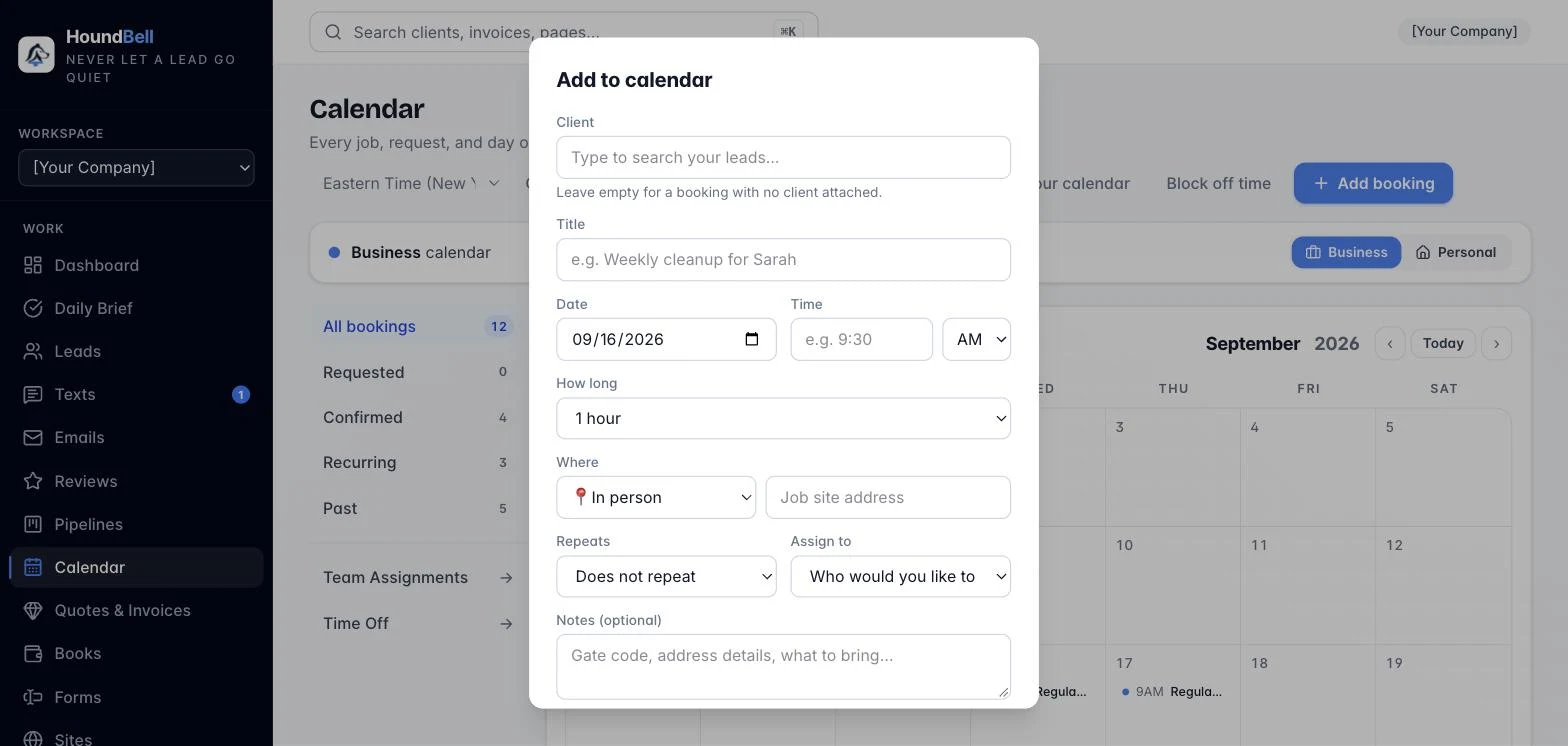
Your hours, days, and buffer
The times visitors can pick live in Settings → Booking hours: your open window, days of operation, a buffer between bookings, and your time zone. Your hours, booking slots, and the hour-before reminders all run on that clock. Changes apply to your website forms the next time each form is Saved & published.
Blocking off time for the whole business also closes those dates on your website picker, so visitors can never request a day you are away.
Still stuck?
Email us and a person will answer. Include your workspace name, and the quote or invoice number if it is about one.
Email support@houndbell.com